
Garrett Griffin-Morales
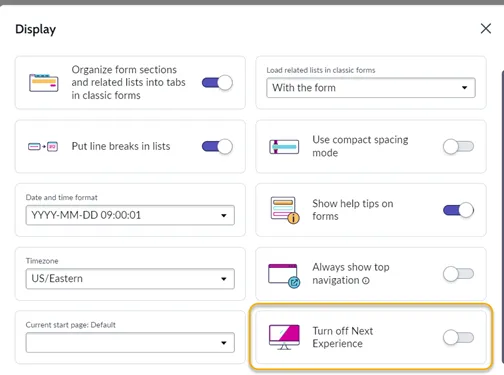
You can add a Preference option for users to disable or enable Next Experience for themselves, even though this option is not present by default.
Before doing this, consider if this would be advisable in your environment. From a support perspective, you may prefer to leave the Next Experience “on” or “off” for all users instead of providing this option.
Prerequisite: Next Experience must be enabled
First, Next Experience has to be enabled on your instance to use this toggle. This article assumes that users are already using the Next Experience on this instance or that you have already tested it with your applications and user base and want to add this preference setting so users have this extra option.
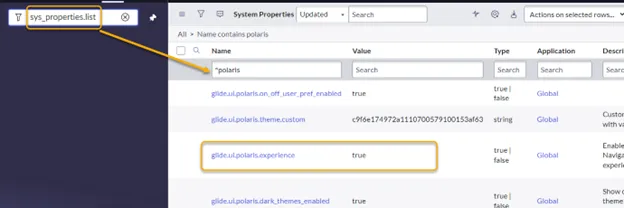
The Next Experience is enabled when the system property “glide.ui.polaris.experience” is set to “true.” You can find this property by typing “sys_properties.list” in the Navigator filter and hitting “enter” to see a list of System Properties. You can then filter to locate glide.ui.polaris.experience.
Adding and activating the Preference
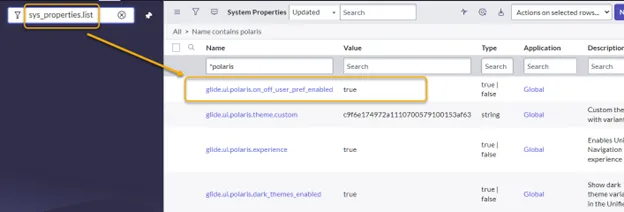
- After the Next Experience is enabled, look for another property called “glide.ui.polaris.on_off_user_pref_enabled” in the System Properties.
- If it is listed, set its Value to “true.”
- If it is not listed, create a new property for it:
- Switch to Global scope if you are not already in it.
- On the System Properties list page, click “New.”
- Fill out these three fields:
- Name: glide.ui.polaris.on_off_user_pref_enabled
- Type: select “true | false”
- Value: true
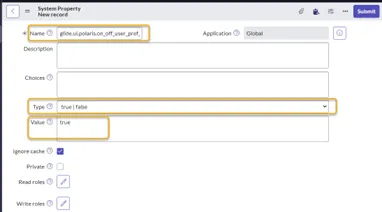
- Click “Submit”
Using the Preference
Now your users should be able to toggle between the two user interfaces.
When in Next Experience
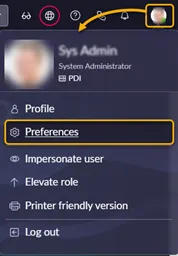
To toggle from Next Experience to Core UI (formerly known as UI16), a user clicks the Profile icon and selects “Preferences,” then clicks “Display” in the Preferences window.
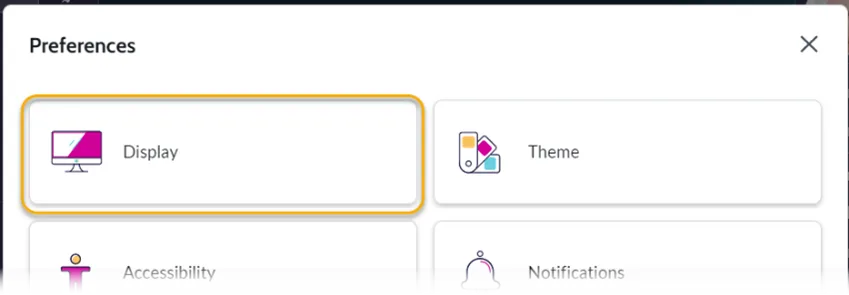
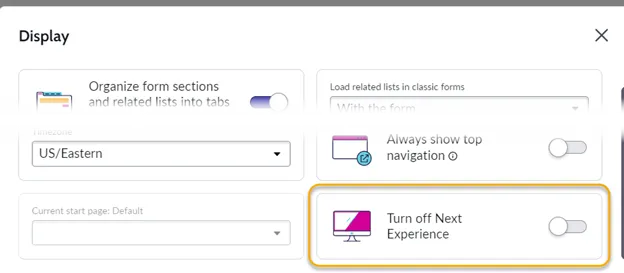
The option “Turn off Next Experience” will be visible in the Display window. All the user has to do is slide the toggle to the right to switch to Core UI.
When in Core UI
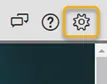
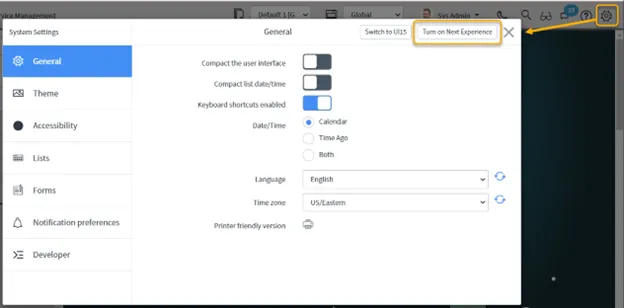
To toggle from Core UI (formerly known as UI16) to Next Experience, a user clicks the gear icon to open the System Settings window.
From the System Settings window, the user clicks the button at the top to “Turn on Next Experience.”
Conclusion
As described above, providing this toggle is a simple task. Note that if you do not want to implement this for your business instances, it could still be helpful on a PDI if you can support both Core UI and Next Experience users.