
Garrett Griffin-Morales
A data lookup provides a way to set a field value based on other values on a record. You have probably seen this method in action before on an Incident or Problem when the Priority field is set automatically based on the selections made for Impact and Urgency. That is not done through a script, but by a lookup on a specially defined table.
One advantage of using a data lookup table is that it can be easily updated when mappings need to be changed. It also provides an easy way to look at the mappings - you don’t have to look through code to see the log of how fields are set.
Example Form
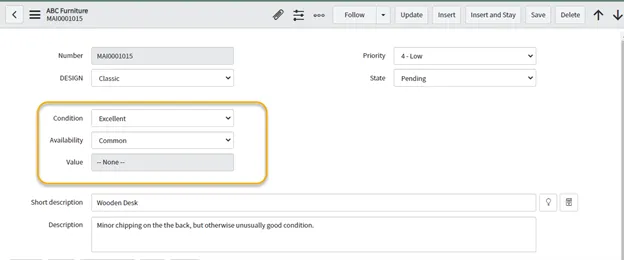
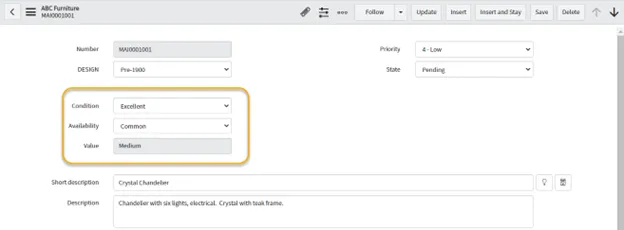
Below is a screenshot of a custom form, ABC Furniture. The “Condition” and “Availability” fields are intended to automatically set another field, “Value”. “Value” does not have to be read-only as it is here, but in this example, it helps demonstrate that it is not being set manually. We’ll walk through making a data lookup for this form.
Create a Matcher Table
A custom table will need to be created to hold your mappings. (You can use Studio to create the table instead, but be sure to read below for what table it must extend, or it will not work.)
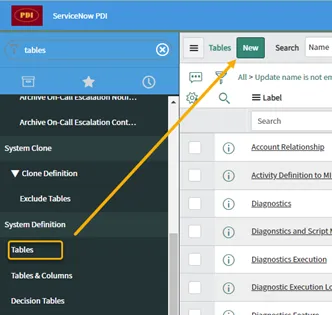
- Go to System Definition > Tables and on the Tables list click “New”
-
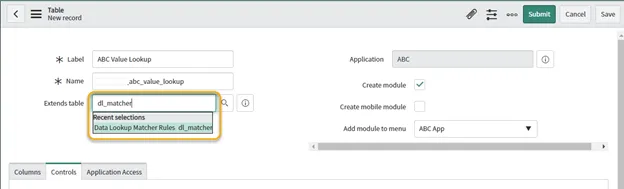
On the Table new record, fill in the following fields:
-
Label = friendly name for the table
-
Name = database name of the new table. You might adjust the suggested name.
-
Extends table = dl_matcher . The dl_matcher (“Data Lookup Matcher Rules”) table MUST be selected in order for this to work. This field cannot be updated after this record is created, so make sure this is correct.
-
Fill in the other fields according to your preferences.
-
-
Click “Save” to stay on the same record.
-
On the related list called “Columns”, use the “New” button to add any fields you need to use for mapping to the table.
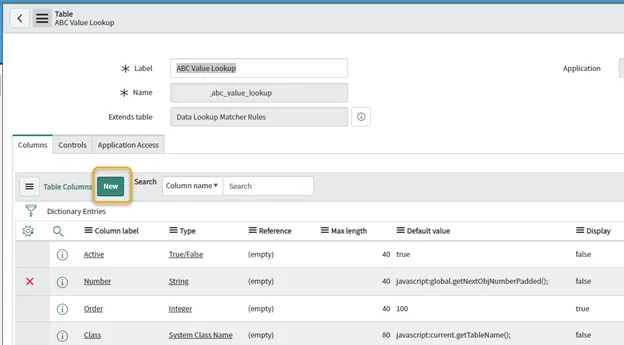
In this example, we’re going to add three new fields (Condition, Availability, and Value) to help us map the same fields on the Furniture form. Here is a screenshot of the first field, “Condition,” being created:
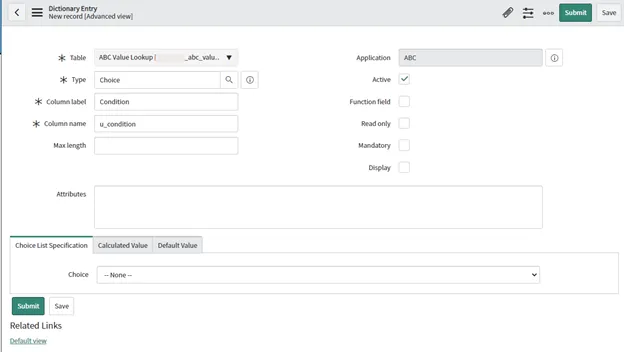
-
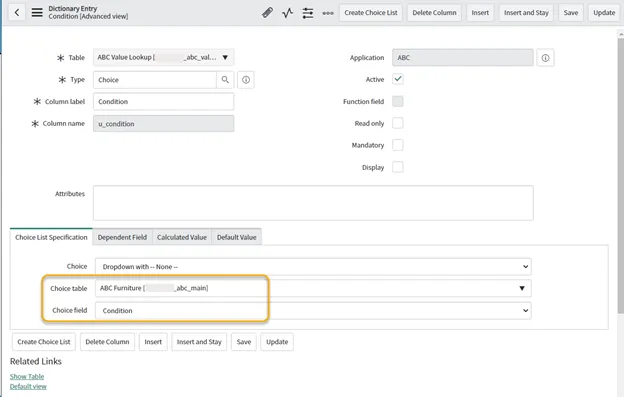
Optional: For each choice field that should always show the exact same choices as its corresponding choice field on the main form (ABC Furniture), do this:
-
Open the Advanced view of the Value Lookup form.
-
On the Choice List Specification tab, fill in the “Choice table” you’re copying from (ABC Furniture in this case) and the “Choice field” (Condition in this case) that has the values you want to copy.
-
Click “Save”.
After doing this, any changes to the “Condition” field values on ABC Furniture will be reflected in the “Condition” field on ABC Value Lookup.
Go back to the new matcher table and see the fields you have added. At this point, this is not doing anything - it’s just a table with fields we plan to use for setting one or more field values on the Furniture form.
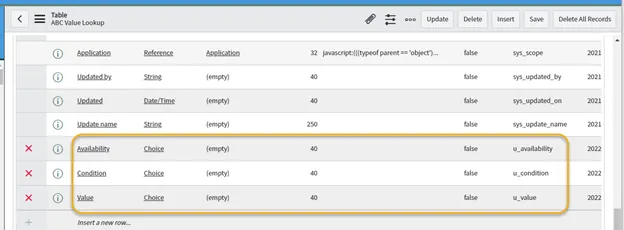
There are not any records in this matcher table yet. We’ll wait on that in this example.
Make a new Data Lookup Definition
An entry in the system’s “Data Lookup Definitions” table is needed to make the new matcher table work.
- Call the definition form up in the navigation pane: System Policy > Rules > Data Lookup Definitions. Click “New”.
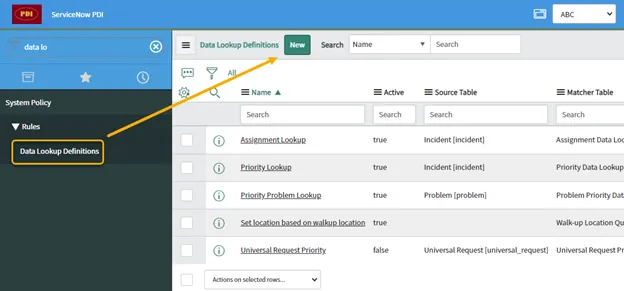
- In the interceptor that appears, choose “Data Lookup rule”.
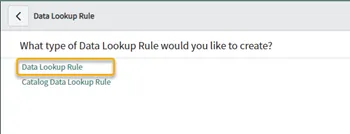
- Fill out the Data Lookup Definitions fields as needed.
- Name
- Source Table - This is the table you want to run this lookup from. In this case, it is the ABC Furniture table because its records are where the user needs to be able to select Condition & Availability to set the Value field.
- Matcher Table - The new table we made that extends dl_matcher (ABC Value Lookup).
- Select any checkboxes that control when you would like this rule to run: Run on form change, Run on insert, Run on update.
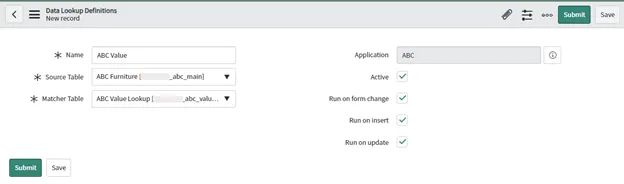
- Click “Save” to stay on this new record. Two related lists should appear below for our matcher table:
- Matcher Field Definitions - will contain the field(s) you want to use as criteria
- Setter Field Definitions - will contain the field(s) you want to be set based on the matcher field selections.
[ As a reminder, our goal back on ABC Furniture:
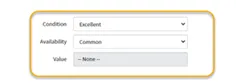
is to have the combination of Condition and Availability (which will each map to a “matcher” field here) set the Value field (which will map to a “setter” field here). ]
- In the Matcher Field Definitions list, click “New”.
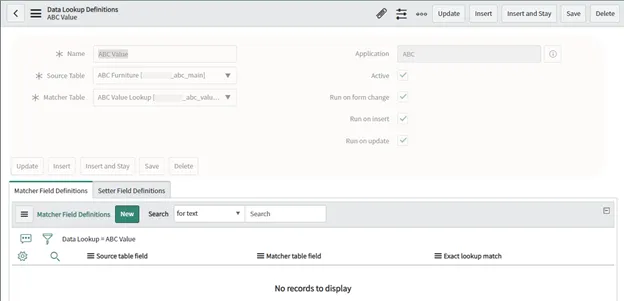
- Fill in the Source table field you want to match on, and the corresponding Matcher table field that maps to it. They do not have to have the same name, as they do in this example. Our “Condition” field on the source could be matched to some other field on the matcher table. It does make it easy to map the fields, though.
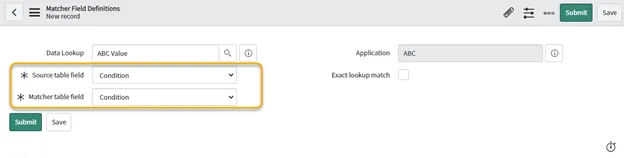
- Click “Save”.
Repeat this as needed. We created two matcher entries, one for Condition and the other for Availability.
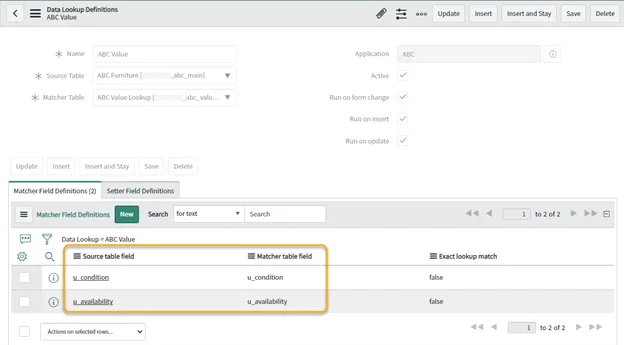
- On the Setter Field Definitions list, click “New”.
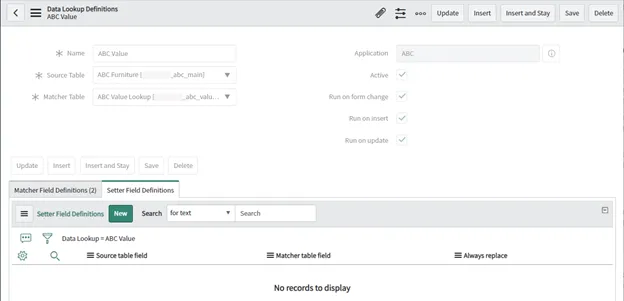
- Add a Source table field and Matcher table field that should map together. “Value” is the name of a field we are setting in this example. The setter fields do not have to have the same name as the source table counterpart, even though they are both named “Value” here. The “Always replace” checkbox means that the lookup will replace whatever information is in the setter field. If it is not checked, then the lookup only sets the field if it is currently blank.
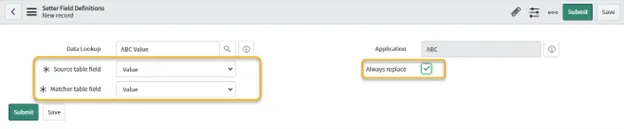
- Click “Save”.
Add as many setter fields as needed. In this example, we are only setting one, the “Value” field.
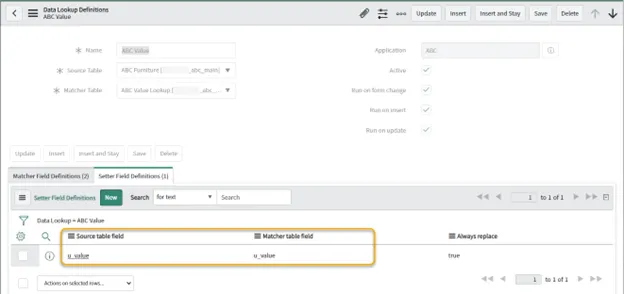
Once these matcher and setter fields are specified, you are done with the data lookup definition.
Add records to the matcher table
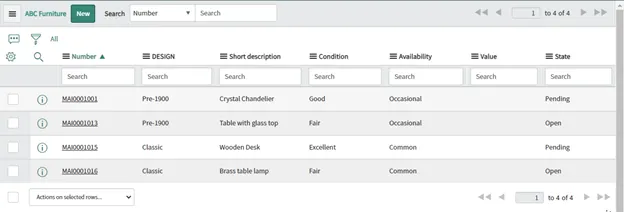
This screenshot shows the ABC Furniture table has 4 records with Condition and Availability set, but no Value field entries.
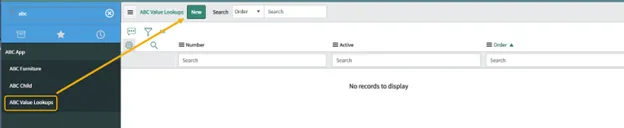
- Open up the matcher table - in this case, our ABC Value Lookup table. This table is now ready to use for data lookups. We just need to make entries in it. Click “New”.
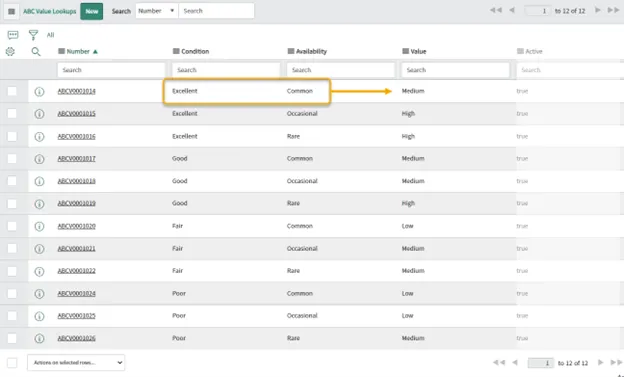
- Fill in the fields in your matcher record to match your business needs. This screenshot shows an entry that will use Condition = Excellent with Availability = Common to set the field named “Value” = Medium. Click “Save” or “Submit” and continue making an entry for every combination of matcher fields you want.

Our ABC Value Lookup example was filled out with 12 records to control what the Value field will be for each combination of the Condition & Availability fields.
Test the Data Lookup
Go back to the main form - the “source” form - and test to make sure the data lookup is working. If you checked the “Run on form change” checkbox on the Data Lookup Definition, for instance, you can simply change one of the matcher fields on a record and see that it dynamically sets the setter field(s). In this example, the Value field is set to “Medium” based on both Condition = Excellent and Availability = Common.
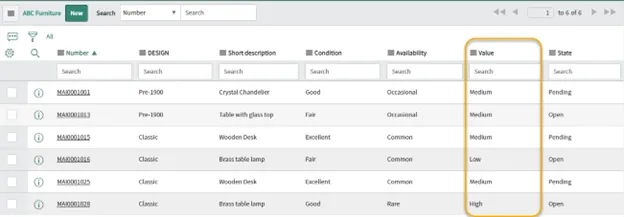
After further testing, we can see that the “Value” field is set properly on the 4 records on which it was previously empty. We also created a couple of new records for testing.
Conclusion
Data lookup tables are simple and effective. Once they are set up, values on the field mappings are easy to change since they are driven by the records you put in. And as also mentioned before, they are easy to understand and do not require coding knowledge.