Garrett Griffin-Morales
Note: This is an updated blog post from 4 years ago on my personal blog. I’ve reviewed it for accuracy and ensured it’s Kingston compatible.
I’ll be writing a new post about Background Scripts vs. Fix Scripts soon!
What?
Background Scripts are Service-Now’s most direct method to run JavaScript directly against the server. This makes them an excellent way to test out the code intended for use in Script Includes, Scheduled Jobs, and Business Rules. Additionally, this is one of the best ways to cobble together text based reports that are too complicated for the reporting module - I’ve often used Background Scripts to aid in outage post-mortem investigations.
Warning
While powerful, Background Scripts can be dangerous. If you aren’t careful, you can delete all kinds of important or system-critical records. Even more likely, a poorly written script might run indefinitely, causing system performance issues.
Where?
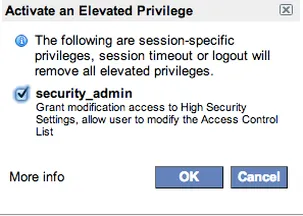
As an admin, use the lock icon to elevate your privileges to “security_admin”.
 Look in the left-hand navigation for “ -> Background Scripts”, and click away.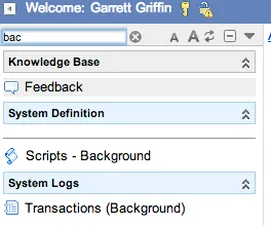
You’ll see a large box that you can input your JavaScript into, unfortunately there’s no error checking or syntax highlighting, but it’ll have to do.
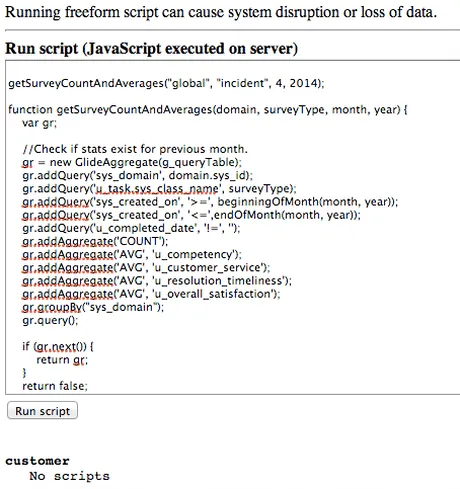
Once you input your script, you’ll click “Run”. The system will run your script, and you’ll see output as pictured below.
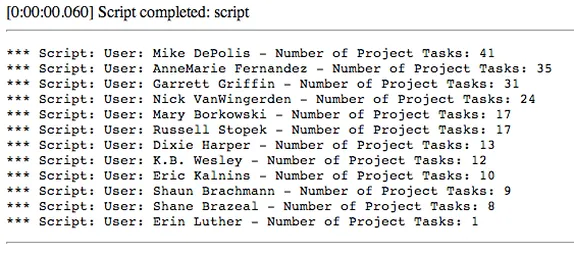
One excellent tip, is that you can use “gs.print()”, to output things from your background script without having them be entered into the system log - that’s what I’ve done in the image above.
Anything else?
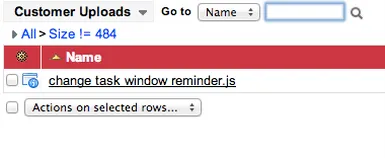
It is possible to permanently store scripts on the Background Scripts page for use later. In order to do so, you’ll have to write your script in an outside editor, and upload it. These aren’t captured in update sets, so treat them like data.
Write your script and save it with a “.js” file extension - be sure to test it first to make sure it runs as you would expect!
In the left hand menu, look for “Upload File”.
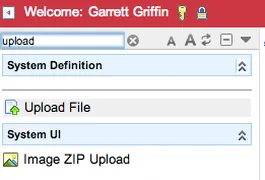
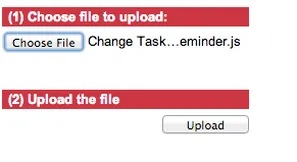
Select your JavaScript file, and click upload.
Navigate to Background Scripts (remember to elevate to security admin if need be)
You’ll notice your script listed under the box used to execute JavaScript.
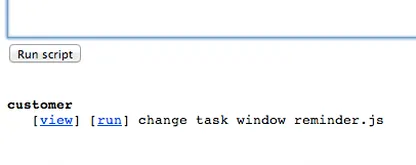
By clicking on the blue link of your script, it will be run instantly, showing your output like normal.
If you ever need to delete one of these scripts, visit the table “v_customer_uploads”, and delete the corresponding record there.