Development

Byte #12: How to Export an Update Set

There’s numerous situations that require developers to backup their ServiceNow configurations: cloning over an environment, uploading work to ShareNow, and…

There’s numerous situations that require developers to backup their ServiceNow configurations: cloning over an environment, uploading work to ShareNow, and more…

![Menu with options: Home, Printer friendly, Help, JS Log. Below: Font size, Split Layout, Enable Accessibility. Then:…](./byte_12_8ca276_4cbec291a0ba42988a7a26652b59805c_mv2.png)![Dropdown menu for 'State' shows 'Complete' selected, with 'In progress' and 'Ignore' options.](./byte_12_8ca276_02604dec2dee4beb902319151346eac9_mv2.png)
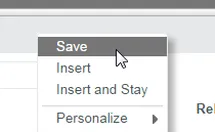
  1. Mark the Update Set as completed.

    Dropdown menu with 'Save' highlighted, showing 'Insert', 'Insert and Stay', and 'Personalize' options.

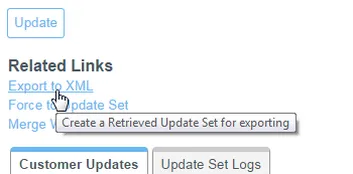
  2. Click “Export to XML”.

    Cursor hovers over 'Export to XML' link, showing tooltip 'Create a Retrieved Update Set for exporting'.File icon next to text 'sys_remote_update_....xml

  3. Rename the exported file (if desired).

File icon with text 'sys_remote_update_set_b487e6692b7fa1004e22d1b3e4da15e2.xml'.